-
Automations
-
Integrations
-
Import & Export
-
Privacy and Security
-
Infinity Partner Programs
-
Announcements

Dashboard View
- What Is the Dashboard View?
- Dashboard View Use Cases
- How to Create a Dashboard View
- Tips for Building a Useful Dashboard
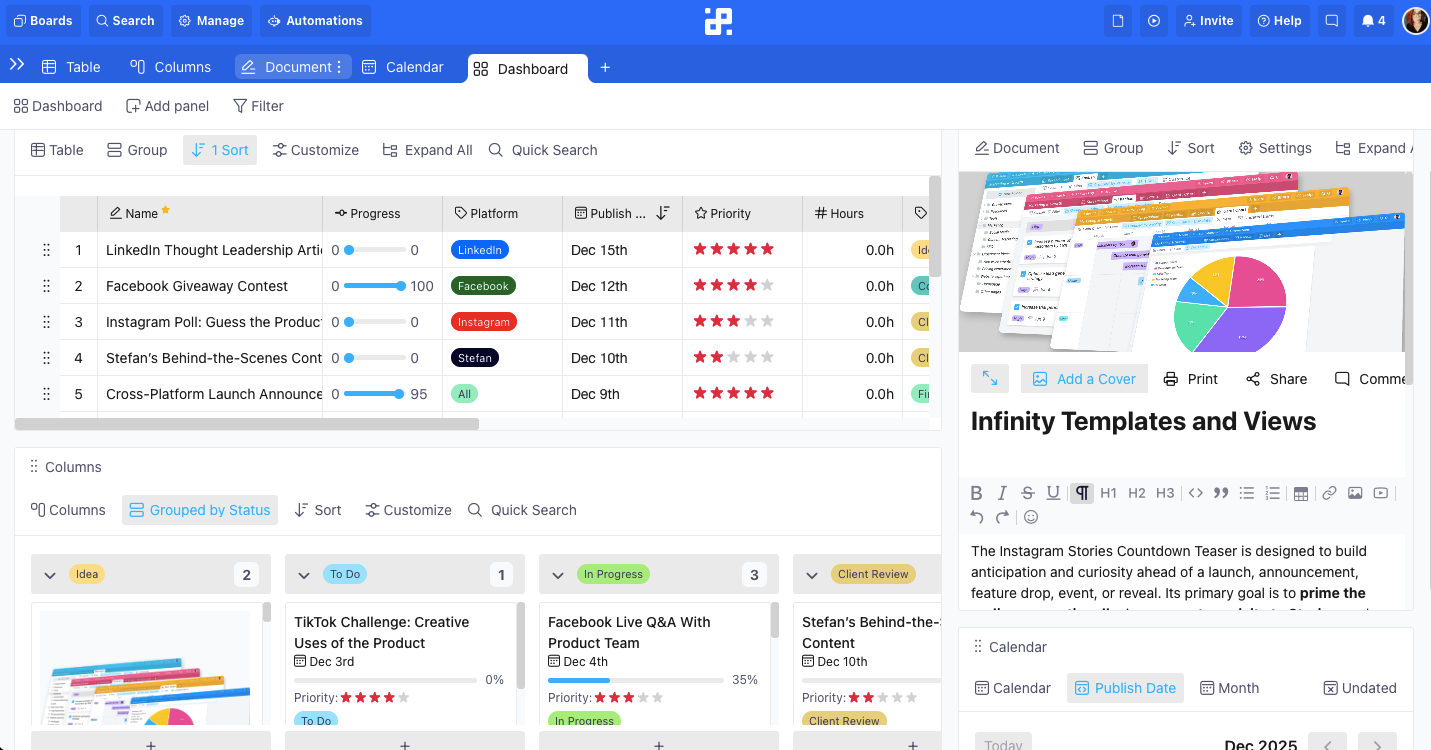
The Dashboard view lets you combine multiple views in one place, so you can see your work from different angles without switching tabs.
What Is the Dashboard View?
A Dashboard view is a multi-panel layout where each panel displays a view from your folder. This means you can see different perspectives of the same work at the same time, side-by-side.
All panels show the same folder items, so changes you make in one panel (like updating a status in a Table) are reflected everywhere.
It's especially useful when you want:
- A high-level overview (charts + timeline)
- A single "command center" for a project (table + gantt + key metrics)
- A way to monitor progress while still editing item details
Each panel can display any view available in Infinity: Table, Columns, List, Calendar, Gantt, Form, Chart, Document, or Files.
Dashboard View Use Cases
Dashboards are ideal when you want to combine "execution + overview" in one place, such as:
- Table + Gantt + Chart
Manage item details, see the timeline, and track progress visually. - Columns + Calendar
Track status by stage while keeping an eye on upcoming dates. - List + Document + Files
Keep tasks, specs/notes, and supporting assets together in one screen. - Form + Table
Collect new requests via Form while instantly seeing everything populate in a Table panel.
How to Create a Dashboard View
To create a Dashboard view in a folder:
- Open the folder where you want the dashboard.
- Click the Add Tab button (the plus sign) if you already have some tabs in place or click on the View Switcher.
- Select Dashboard from the list.
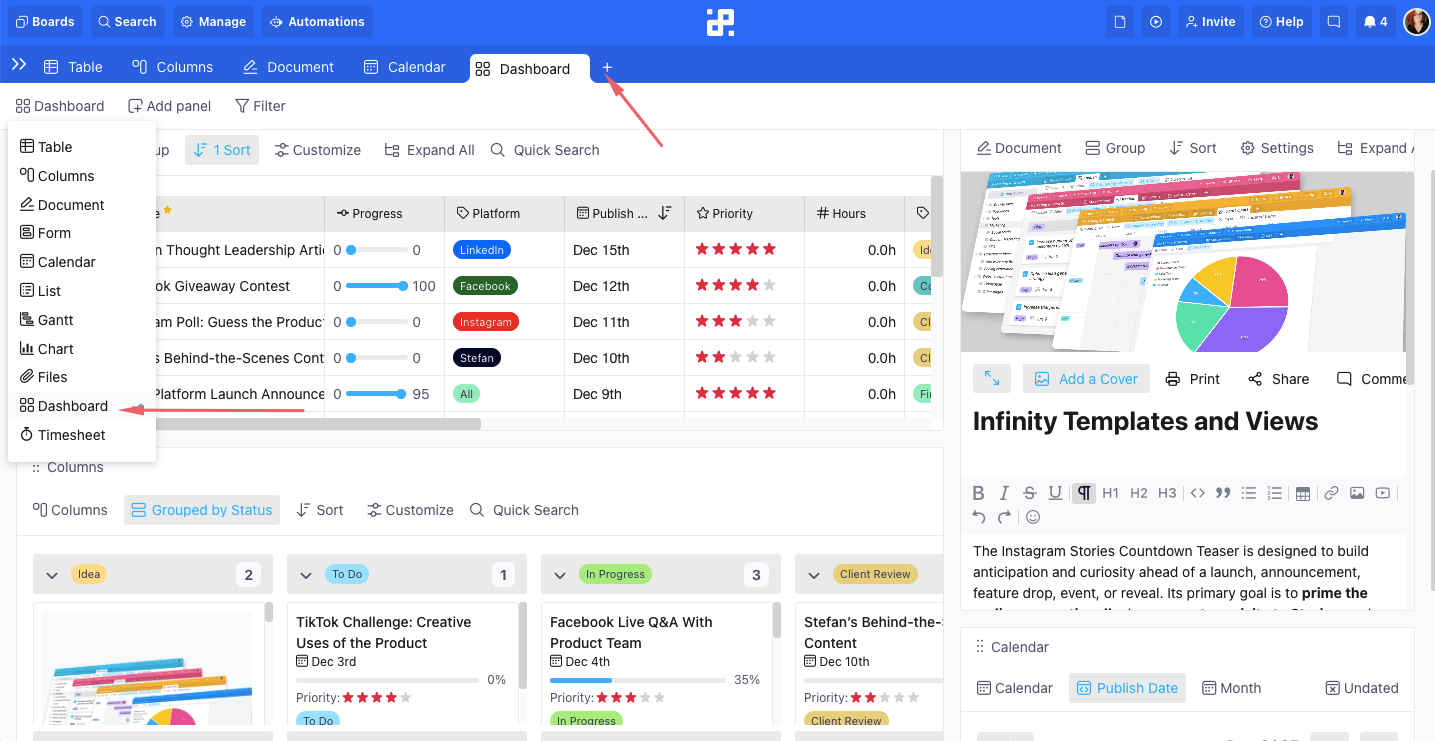
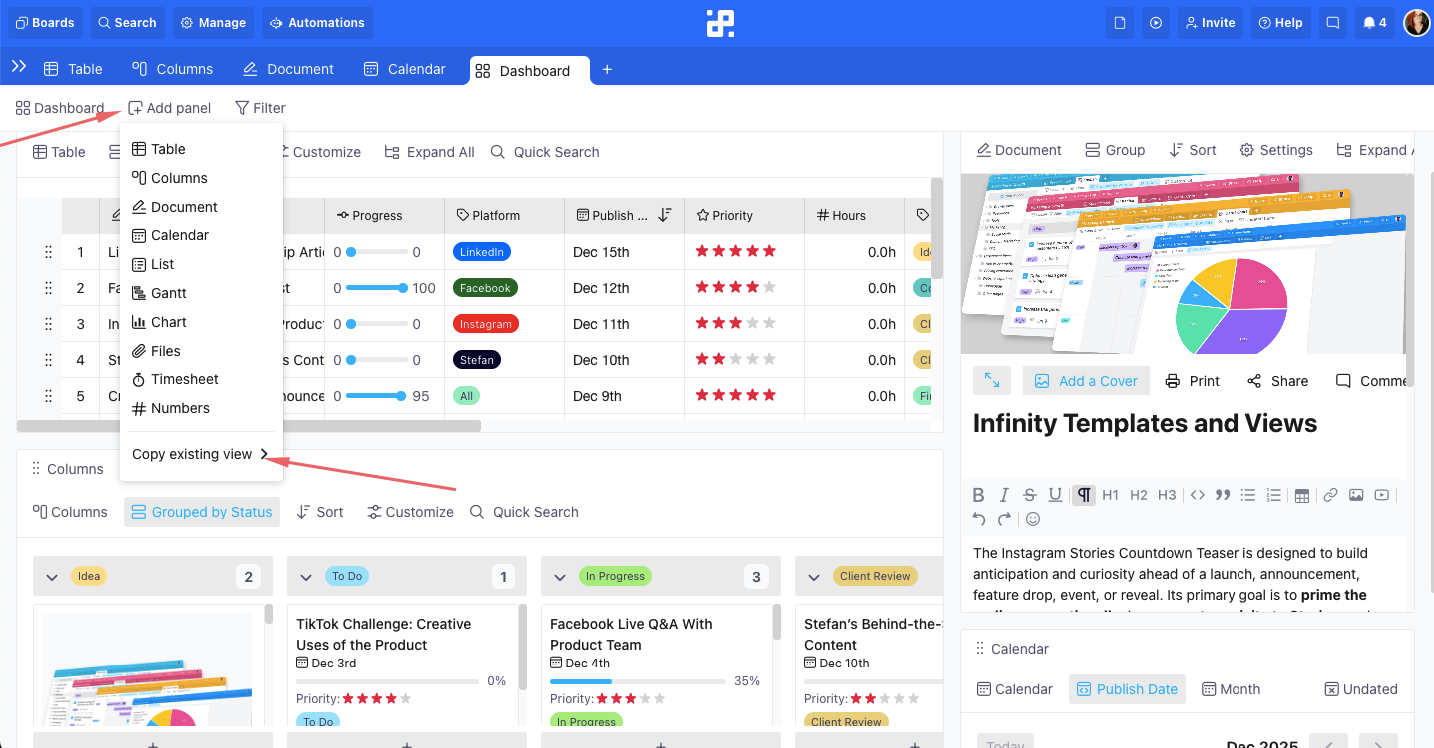
- Click on Add Panel to add a new panel to the view.
- Or copy an existing view from the folder (recommended if you already have filtering, grouping, or sorting set up). The panel will load that view with the same setup.
- Repeat to add additional panels.
Rearranging, Resizing, and Removing Panels
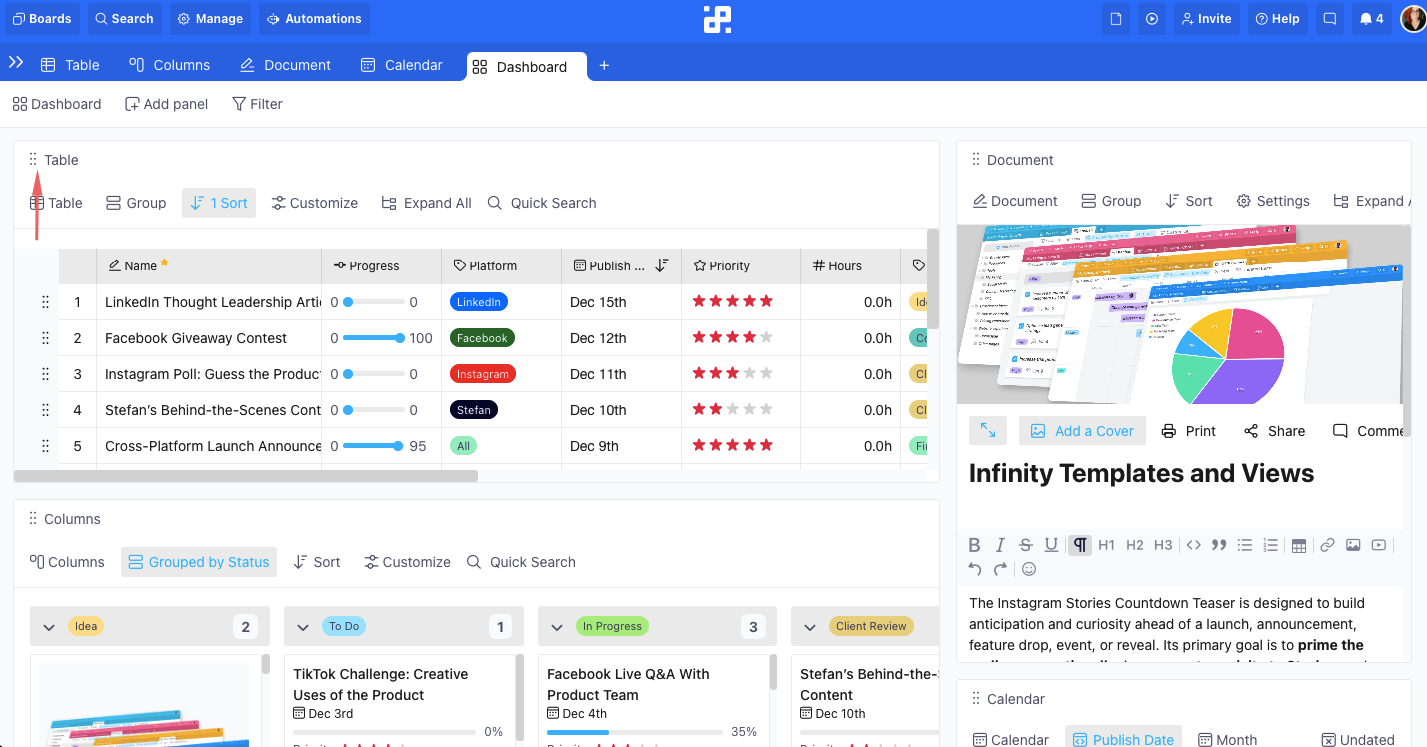
While adding your panels, you can easily rearrange and resize them to your liking.
- To rearrange a panel, drag a panel by its header and drop it into a new position.
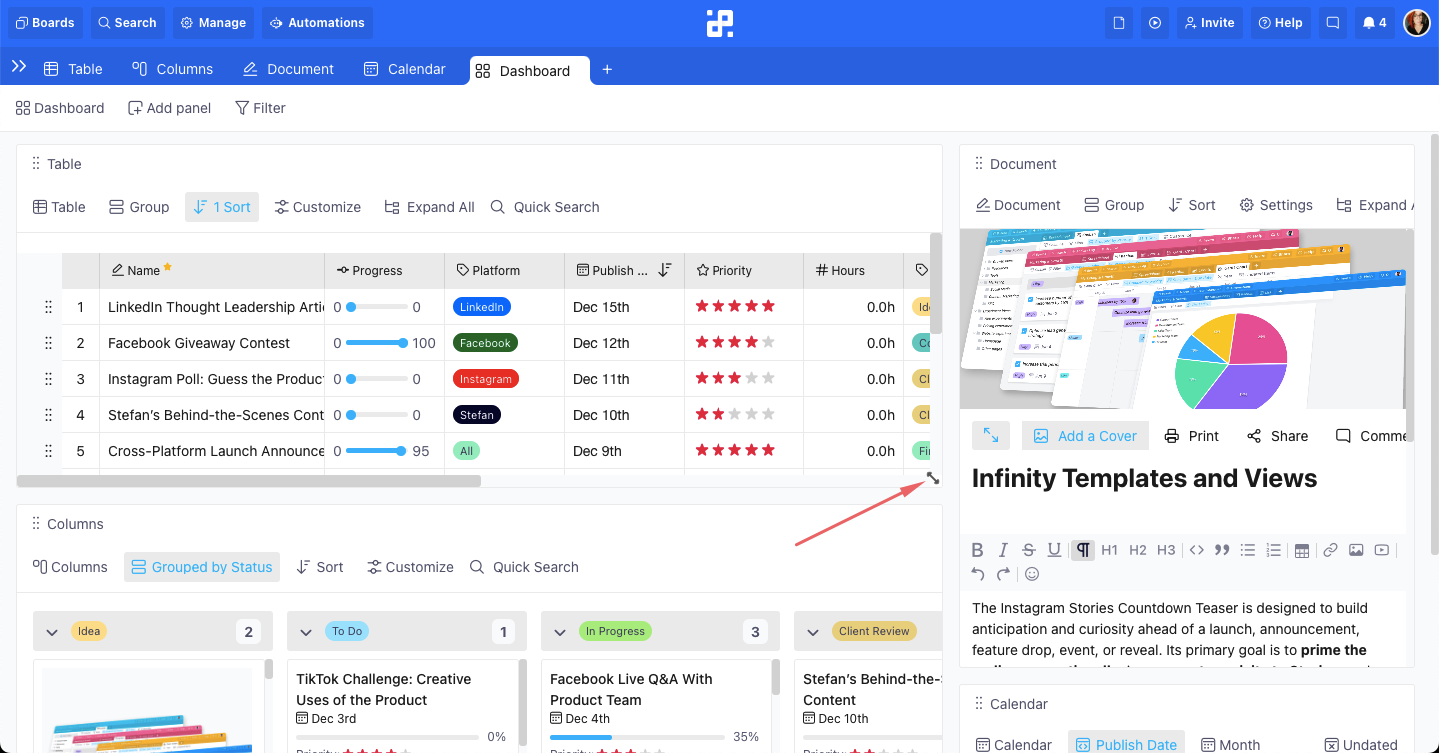
- To resize a panel, hover near the bottom right edge of a panel until the resize arrow/handle appears, then drag to the side you want.
- To remove a panel, open the panel menu (the three dots in the upper right corner of the panel) and select Remove. In the same menu, you can also duplicate any of your panels.
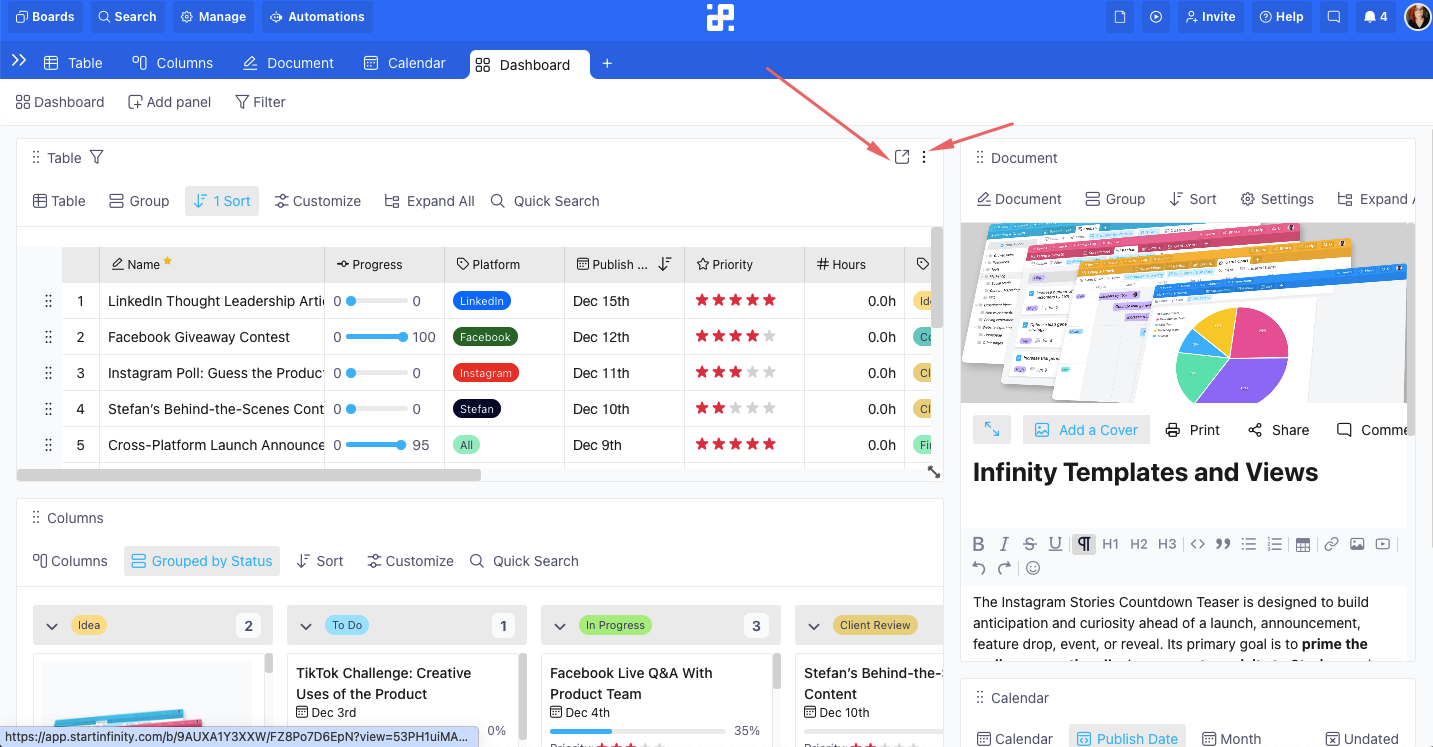
- You can also open a panel/view in a pop-up window by clicking on the expand button next to the three dots.
Numbers Panel
The Dashboard view also includes a Numbers panel, which lets you display key numbers from your folder directly on your dashboard, so you can monitor progress at a glance.
To add it:
- In your Dashboard view, click Add Panel.
- Select Numbers.
- Choose what you want to display: Aggregation (e.g. item count, status, hours etc.), Metric (empty, not empty, sum, etc.) and Label.
{primary} Tip: Numbers panels work best when placed near the top of your dashboard so your most important metrics are visible immediately.
Create a Dashboard when you want one place to plan, execute, and review, then adjust panels anytime as your workflow evolves.